I Broke a Tiny Page Five Ways to Understand LCP, CLS, TTFB, FCP and TBT
What TTFB, FCP, LCP, TBT and CLS measure, what makes each one worse and what a good number looks like, tested on a small page I broke on purpose.

Run a page through PageSpeed Insights and you get a score, a color and a row of acronyms, including TTFB, FCP, LCP, TBT and CLS. They look like a test you forgot to study for. But each one answers a plain question a visitor has while the page loads, and once you watch them move, they stop being scary.
So I built the most boring page I could: a heading, one picture and three short paragraphs. Then I broke it five different ways and measured every version.
I tested with Lighthouse 13.5 in mobile mode, which pretends to be a phone on slow 4G. By default, Lighthouse loads the page at full speed and estimates what a slow phone would see, and on localhost those estimates got strange. So I used --throttling-method=devtools, which actually slows the network down. Each version ran three times, and the runs stayed within 30 ms of each other.
A page load is a restaurant visit
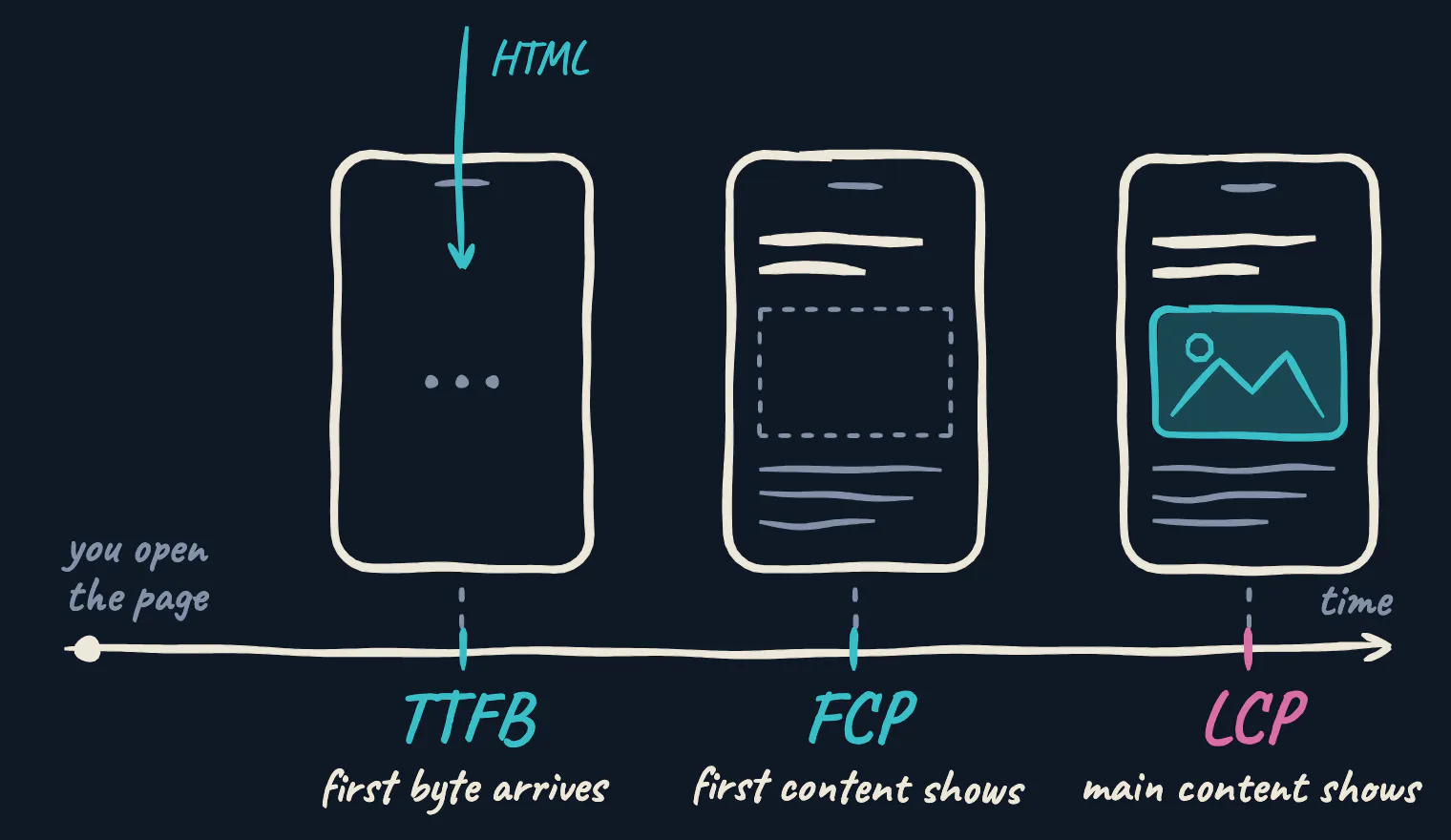
TTFB is how long until the kitchen sends out anything at all. FCP is the bread arriving. LCP is the main course. TBT is the time the waiter is too busy to hear you. CLS is someone moving your plate just as you reach for it.
The first three are moments on one timeline, always in this order:
TTFB: how fast the server answers
Time to First Byte is the time from the browser asking for the page until the first byte of the answer arrives. It covers redirects, finding and connecting to the server, and the server building the page.
My laptop answered in 1 ms, which says nothing about real visitors, so I made the server wait 0.6 s on every request, like one that builds pages from a database. That’s the baseline: TTFB 0.6 s, FCP 0.7 s, LCP 1.4 s.
Break #1: 1.5 s of extra waiting, roughly a slow database query. TTFB went to 2.1 s, and FCP and LCP moved later by the same 1.5 s. Nothing can appear before the HTML arrives, so a slow TTFB delays everything after it.
Usual causes: slow backend code or queries, no caching, a server far from your visitors, redirect chains.
Good: 0.8 s or less. Poor: over 1.8 s.
FCP: when something appears
First Contentful Paint is when the browser draws the first real content: text, an image, a logo. A background color doesn’t count. It’s the visitor’s first sign that the page works; a blank screen for three seconds feels broken.
Break #2: one CSS file that takes 2 s to load. Browsers wait for the stylesheets in the <head> before drawing anything, so one slow file holds back the first paint. TTFB stayed at 0.6 s, but FCP jumped from 0.7 s to 2.7 s. LCP waited too: the picture had arrived but couldn’t be shown before the first paint.
Usual causes: a slow TTFB, CSS and JavaScript loaded in the <head>, web fonts that hide text while they load.
Good: 1.8 s or less. Poor: over 3 s.
LCP: when the main content is there
Largest Contentful Paint is when the biggest image or block of text on the visible screen finishes drawing: usually a hero image, a product photo or a large heading. It’s the closest metric to “the page looks ready”, and one of Google’s three Core Web Vitals, along with CLS and INP.
Break #3: I swapped the 29 KB JPEG for a 2.9 MB PNG, the kind of file you get when you export from a design tool and forget to compress it. FCP didn’t move: the heading still showed up at 0.7 s. LCP went from 1.4 s to 16.5 s. That’s the difference between the two: FCP says the page started, LCP says the important part finished.
Usual causes: large images, images that start loading late (for example, ones added by JavaScript), a slow TTFB, CSS and JavaScript that hold back the first paint.
Good: 2.5 s or less. Poor: over 4 s.
TBT: how long the page ignores you
JavaScript runs on the browser’s main thread, the same thread that handles taps, clicks and typing. While a script runs, the page can’t respond. A task over 50 ms is a “long task”, and Total Blocking Time adds up each long task’s time beyond those 50 ms while the page loads.
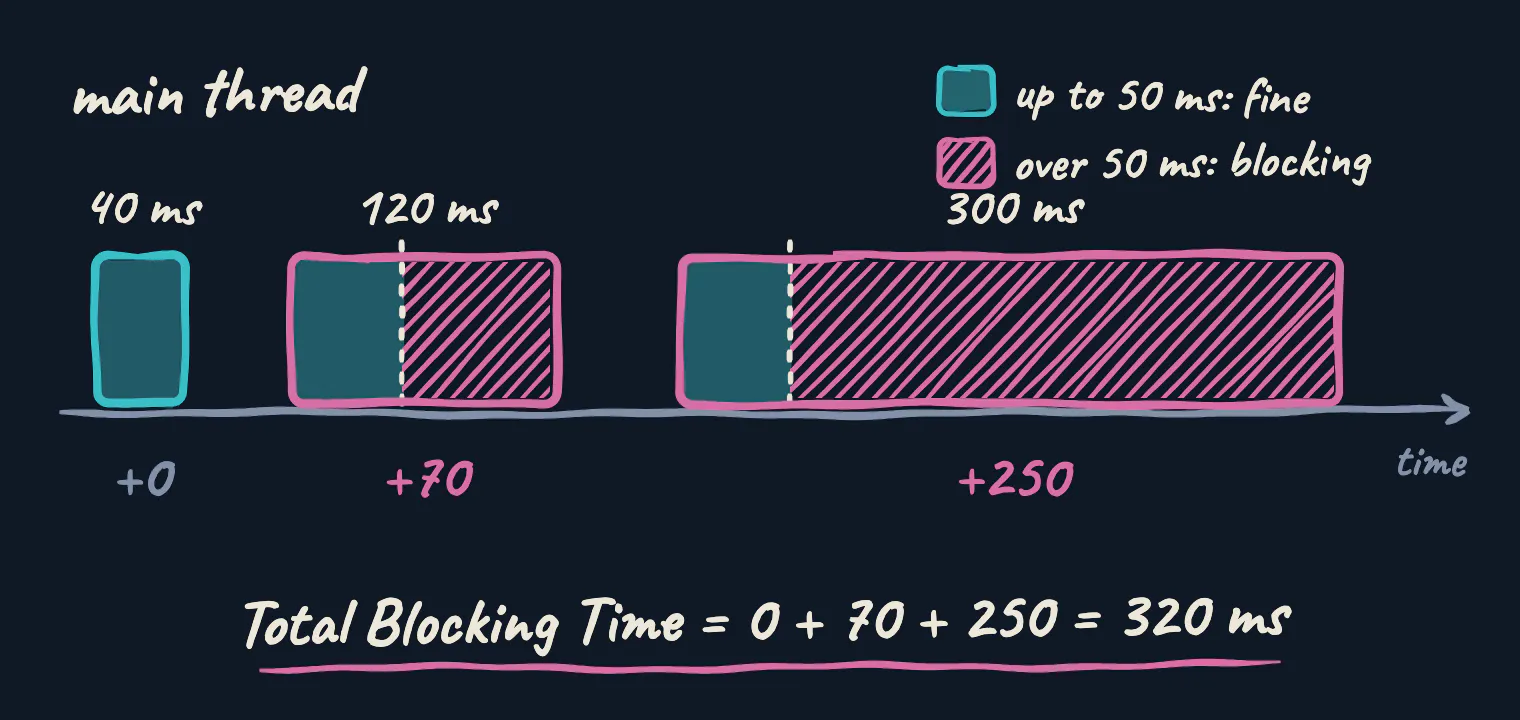
Break #4: a function that does nothing but keep the main thread busy.
function busy(ms) {
  const start = performance.now();
  while (performance.now() - start < ms) {}
}
After the page loaded, I ran it three times: for 40, 120 and 300 ms. The rule predicts 0 + 70 + 250 = 320 ms, and Lighthouse reported 322 ms (I suspect the extra 2 ms is the browser’s own work). FCP and LCP didn’t change. The page looked ready, but during those 460 ms it couldn’t react to a tap or a click.
In real projects, the busy loop is a big JavaScript bundle, a framework starting up, or third-party scripts: analytics, ads, chat widgets.
TBT exists only in lab tests. For real visitors, Google uses INP (Interaction to Next Paint), which measures how fast the page responds to actual taps, clicks and key presses. A high TBT often means a slow INP too, but only data from real visitors can confirm it.
Good: 200 ms or less. Poor: over 600 ms.
CLS: how much the page jumps
Cumulative Layout Shift measures how much visible content moves unexpectedly. It’s a score, not a time: the more of the screen that moves, and the further it moves, the higher the score. Movement right after a tap or click doesn’t count, because you expected it.
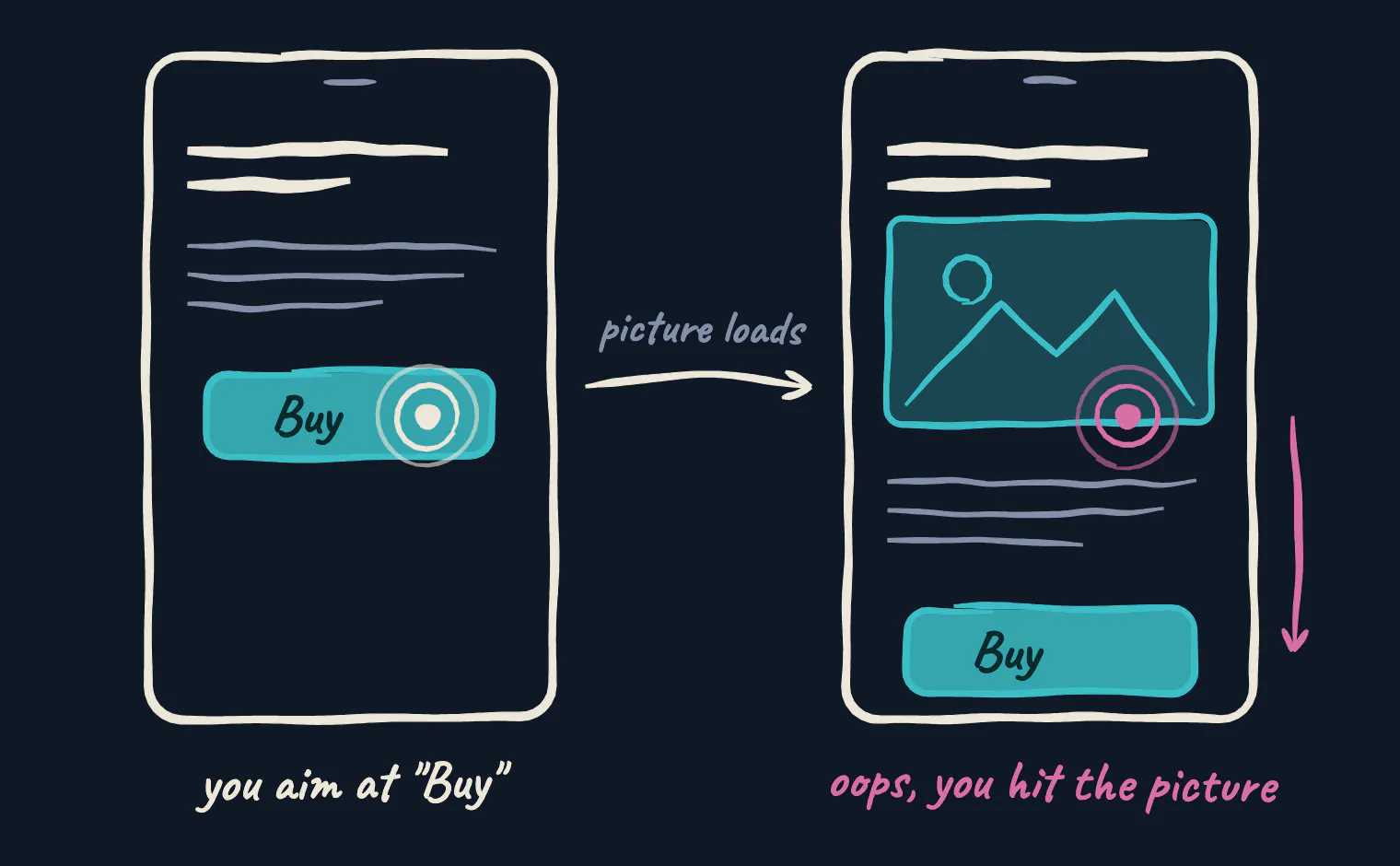
Break #5: I removed the picture’s width and height, so the browser didn’t know how much space to keep for it, and added a banner that appears at the top after one second. The other four metrics didn’t change, but CLS went from 0 to 0.16, which is already in the “needs improvement” range.
Usual causes: images and videos without width and height; ads, banners and embeds inserted above content; web fonts that change the size of text when they load.
Good: 0.1 or less. Poor: over 0.25.
All five breaks in one table
| What I broke | TTFB (s) | FCP (s) | LCP (s) | TBT (ms) | CLS |
|---|---|---|---|---|---|
| Nothing (baseline) | 0.6 | 0.7 | 1.4 | 0 | 0 |
| Slow server (+1.5 s) | 2.1 | 2.2 | 2.9 | 0 | 0 |
| Slow CSS file (2 s) | 0.6 | 2.7 | 2.7 | 0 | 0 |
| 2.9 MB picture | 0.6 | 0.7 | 16.5 | 0 | 0 |
| Busy script (460 ms) | 0.6 | 0.7 | 1.4 | 322 | 0 |
| Picture without size, late banner | 0.6 | 0.7 | 1.4 | 0 | 0.16 |
Bold numbers are the ones that changed. The two breaks that moved several metrics both happen early: a slow server or a slow stylesheet delays everything drawn after it. The other three moved one number each. So when a report looks bad, start with the earliest metric that’s in trouble.
Try it on your own page
Everything above is lab data: one pretend phone on one pretend network, which is what makes it repeatable. Measurements from real visitors are field data, and that’s what Google uses to judge your Core Web Vitals: at least three out of four visits should be in the good range. PageSpeed Insights shows both, with real-user data at the top when your site has enough traffic and a Lighthouse test below.
To start, open Chrome DevTools on your project, run a mobile test in the Lighthouse tab and find the earliest metric that isn’t green. If it got worse after a release, this checklist for a website that’s slow after a deploy walks through finding the cause. And to get a feel for these numbers, do what I did: break something on purpose and run the test again.
Google’s guides are short and clear: TTFB, FCP, LCP, TBT, CLS and INP.
PulseCare records all five metrics on every scan and keeps the history, so when a deploy moves one of them, you can see which one moved and when.